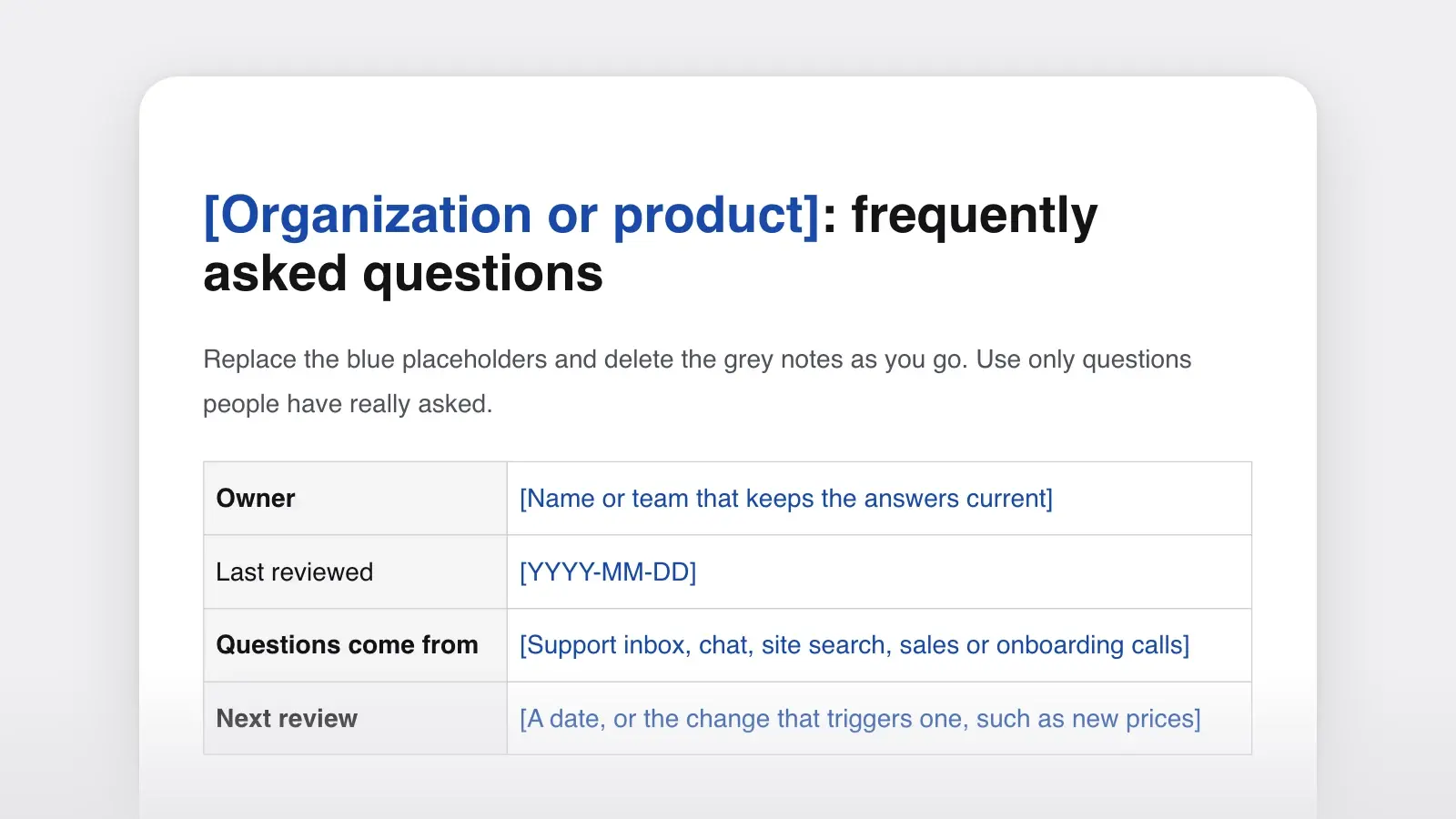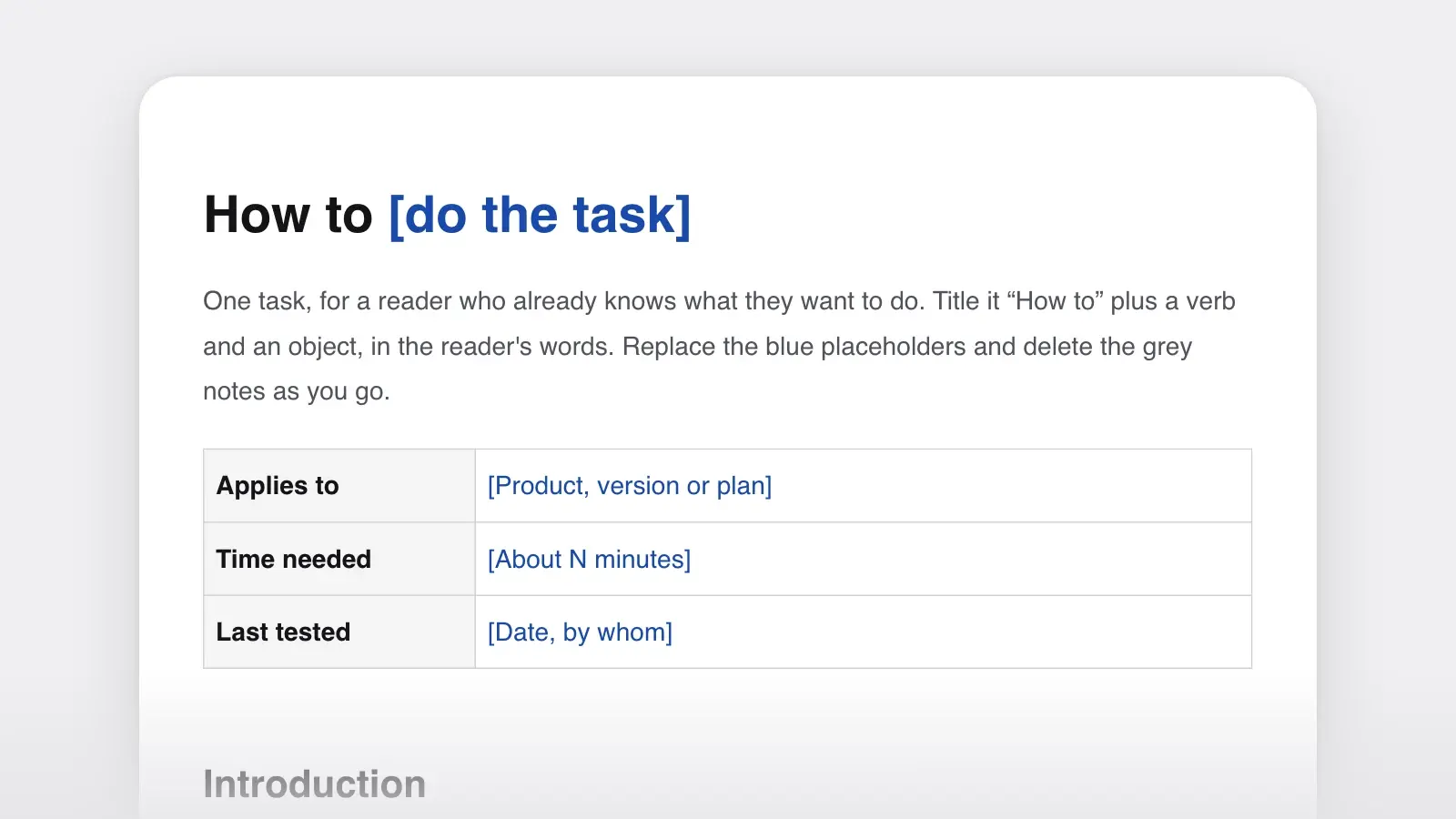
When to use it
- A customer help center, one article per question or problem
- An internal IT or HR knowledge base that answers the same requests every week
- Turning a solved support ticket into an article the next person can find
- Known issues and workarounds that need a status and a date
- Breaking a long FAQ page into articles people can link to one at a time
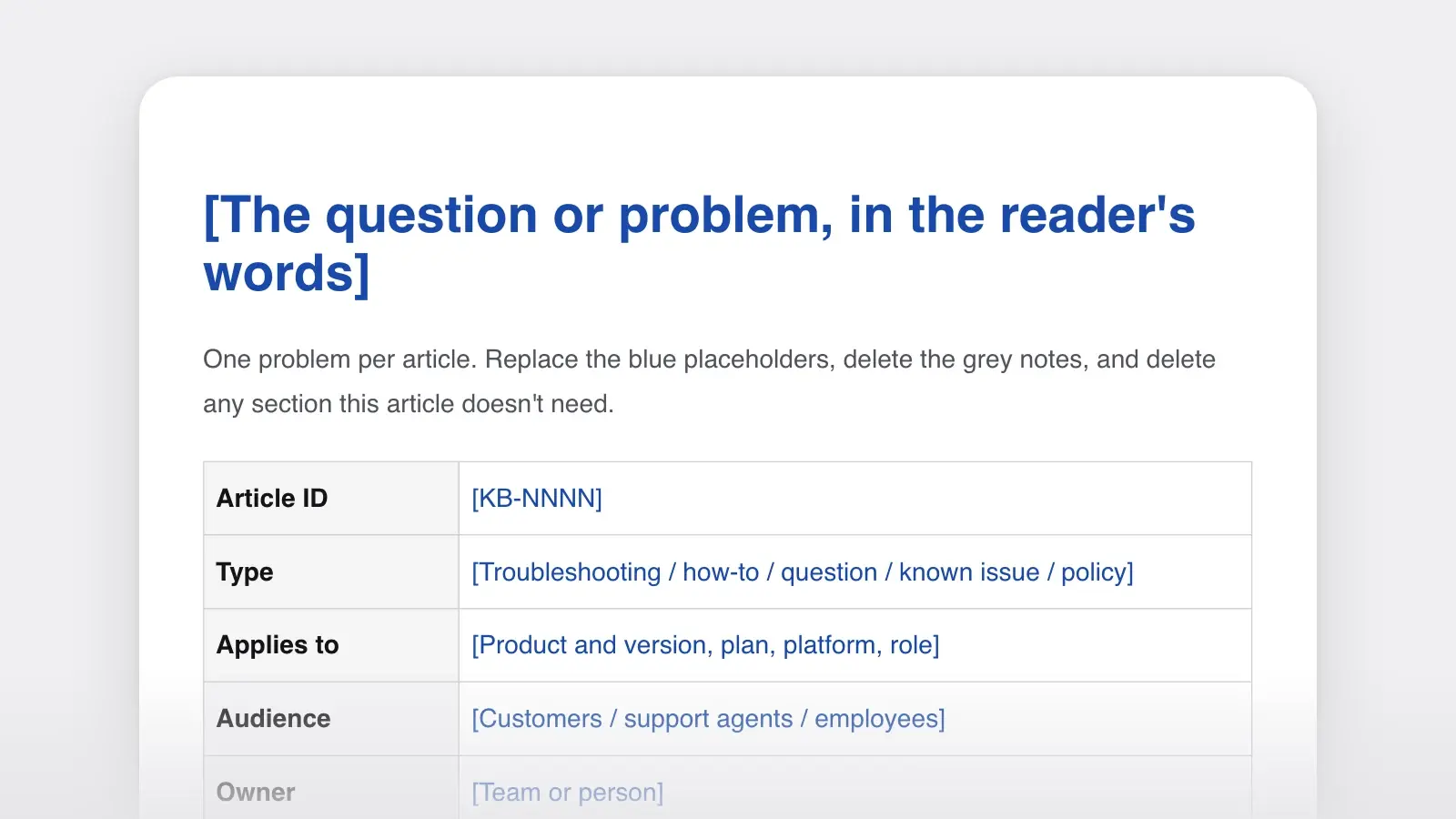
A knowledge base article answers one question or solves one problem, in a format readers learn to scan: a title in the words they searched for, the answer in the first lines, what the article applies to, the steps, and the cause. This knowledge base template gives you that format for a customer help center or an internal knowledge base, with a filled-in example and variants for the five article types most knowledge bases need: troubleshooting, how-to, question, known issue and policy.
The filled-in article below opens with the exact banner a customer sees and the first decision they have to make. If several short answers belong together on one page, use the FAQ template; if a product's problems are better read side by side, use the troubleshooting guide template.
Knowledge base article example
Here is the template filled in as a troubleshooting article for Countwell, an invented bookkeeping app.
Type: Troubleshooting · Applies to: Countwell web app and iPhone app, all plans · Owner: Support, banking team · Last reviewed: 2 November 2026
Answer. The “Reconnect your bank” banner means your bank has ended Countwell's access to your account: reconnect it in Settings › Bank connections, and the missing transactions arrive within an hour. You need the Owner or Admin role and your online banking login; if you don't have both, send this article to someone who does.
Before you start. Have your online banking login ready. It takes about two minutes.
- Go to Settings › Bank connections. You should see your bank with a red Disconnected label.
- Select Reconnect. Your bank's sign-in page opens in a new window.
- Sign in and approve access for Countwell. The window closes and the label turns green.
- Open Banking › Transactions. Transactions since the connection stopped appear within an hour, marked Imported.
Cause. Banks end these connections when you change your online banking password, when the access you approved expires, or after changes on the bank's side. Countwell can't reconnect for you, because only you can approve access.
If this didn't help. If Reconnect shows “Bank not responding”, wait an hour and try again. If it still fails, contact support with your bank's name and the time you tried. Never send your banking password.
Related. Import a bank statement file by hand · Why some transactions appear twice · Change who can manage bank connections
Why it works. The title holds both the symptom and the banner text, so it matches either search. The answer starts from the banner the reader is looking at and settles the first decision, whether they are the person who can fix it, before any step. It solves the problem in two sentences, and a reader who stops there is done. Every step ends with what the reader should see, the cause explains why support can't simply fix it, and the last section says what to send and what never to send.
How to use this template
- Start from a real request
A ticket, a chat, an email to IT, or a help-center search that found nothing. Write one article per problem. If the fix differs by platform, give each platform its own steps or its own article.
- Write the title the way people search
Use the reader's words and the exact text of any error or banner: “Bank feed stopped updating (‘Reconnect your bank’ banner)”, not “Bank connection lifecycle”. Internal names go in the search terms field, where they help without confusing anyone.
- Answer in the first two sentences
Many readers stop after the answer, and that counts as success. Put the fix or the short answer first and the detail below it, the same order as the inverted pyramid of a news story.
- Write the steps from the screen
Exact labels, one action per step, and what the reader should see after each one. The how-to guide template has the full rules for steps.
- Fill in the details and a review date
Owner, audience, what the article applies to and when it was last reviewed. An article without an owner tends to go wrong first after a redesign, and nobody may notice until the tickets come back.
What goes in each section
| Section | What to write | Rule of thumb |
|---|---|---|
| SectionTitle | What to writeThe question, or the symptom in the reader's words | Rule of thumbQuote error messages exactly |
| SectionAnswer | What to writeThe fix or the short answer | Rule of thumbTwo sentences at most |
| SectionApplies to | What to writeProduct, version, plan, platform, role | Rule of thumbEverything that would change the answer |
| SectionBefore you start | What to writePermissions, accounts, time needed | Rule of thumbOnly what the reader must have |
| SectionSteps | What to writeNumbered actions, each with what the reader should see | Rule of thumbOne action per step |
| SectionCause | What to writeWhy it happens | Rule of thumbOptional; leave it out of how-to articles |
| SectionIf this didn't help | What to writeThe next step, and what to include when asking for help | Rule of thumbSay what not to send, such as passwords |
| SectionRelated articles | What to writeTwo to four links | Rule of thumbThe likely next question, not the whole category |
| SectionDetails | What to writeArticle ID, type, audience, owner, last reviewed, search terms | Rule of thumbNever leave the owner blank |
The KCS article structure
Many support teams write articles to KCS (Knowledge-Centered Success, called Knowledge-Centered Service until 2026), a methodology maintained by the Consortium for Service Innovation. Its KCS v6 Practices Guide, still available alongside the newer Knowledge-Centered Success guide, gives an article four fields. The issue is the symptom, problem or question, described in the requestor's words. The environment is the products, category or business process involved, which stays the same after the issue is resolved. The resolution is the answer or the steps, numbered when there are several. The cause is the underlying reason, and the guide marks it optional. Metadata such as audience, quality and governance sits alongside.
| KCS field | In this template |
|---|---|
| KCS fieldIssue | In this templateTitle and Answer |
| KCS fieldEnvironment | In this templateApplies to |
| KCS fieldResolution | In this templateBefore you start and Steps |
| KCS fieldCause | In this templateCause |
| KCS fieldMetadata | In this templateThe details table |
KCS aims to capture what support learns in a way that is “good enough to be findable and usable by the intended audience”, then to improve it as people reuse it. Put another way: publish the article the day the ticket is solved, and fix it the next time someone needs it.
“Use this template” opens a new article in Strokes with the details table and the headings in place. To turn a solved ticket into one, attach the ticket thread to a chat with the Strokes Assistant and ask for the customer's words for the problem, the setup they had and the steps that fixed it: the issue, the environment and the resolution, ready for you to write up.
Knowledge base article examples by type
| Type | Title pattern | Must include |
|---|---|---|
| TypeTroubleshooting | Title patternThe symptom or the exact error | Must includeSteps, cause, what to do if it didn't help |
| TypeHow-to | Title pattern“How to” + the task | Must includeBefore you start, steps with results |
| TypeQuestion | Title patternThe question, as asked | Must includeYes or no first, then the conditions |
| TypeKnown issue | Title pattern“Known issue:” + the symptom | Must includeStatus, who is affected, workaround, dated updates |
| TypePolicy | Title patternThe rule people look up | Must includeThe rule, exceptions, effective date, a link to the full policy |
Go to Settings › Businesses and select Add business. Each business gets its own bank connections, invoices and reports, under the same login. You need the Owner role.
A how-to article is a short how-to guide. Longer tasks get numbered steps, as in the main example.
Yes, within 30 days of reconciling, if you have the Owner or Admin role. Open Banking › Reconciliations, select the reconciliation and choose Undo. After 30 days, ask your accountant to post a correcting entry instead.
The first word answers the question, and the conditions come straight after it: the time limit and the role. Short answers like this one can also sit together on one page, built with the FAQ template, each linking to its full article.
Status: Fix scheduled for version 6.14, week of 17 November 2026 · First seen: 3 November 2026 · Affects: invoices in Swiss francs downloaded from the web app
Workaround: download the invoice from the iPhone app, which is not affected.
Updates: 5 November, cause found. 10 November, fix scheduled.
A known issue changes while people read it, so every update carries a date. When the fix ships, archive the article and mention the fix in the changelog (see the changelog examples).
Deleted files stay in Trash for 30 days, then are removed for good. Owners can empty Trash sooner. Backups are kept for 14 more days and can't be restored on request. Effective: 1 July 2026. Full text: Data retention policy.
Rule first, exceptions next, then the date. Readers quote policy articles back to you, so the effective date matters as much as the rule.
Structure the knowledge base itself
- A home page that searches. A search box, the handful of most-viewed articles, and the categories.
- Categories by product area or by job. Getting started, Banking, Invoices, Reports, Account and billing. Keep the tree shallow, often two levels; deeper menus tend to send readers to the search box.
- One type per article. Each type keeps its title pattern, so “Known issue:” and “How to” work as signposts in search results.
- Statuses and owners. Draft, Published, Needs review, Archived, and one owner per category who checks the review dates.
- Failed searches as a to-do list. A search that returns nothing points to an article nobody has written yet, or to a word your articles don't use.
A knowledge base gives each problem its own article and address. When a product's common problems are better read together, as a manual chapter or a printed sheet, the troubleshooting guide template collects them on one page.
Tips for articles people find
- Borrow the customer's words. Read ten tickets about the problem before you title the article. KCS puts the issue in the requestor's words for the same reason.
- Quote errors exactly, punctuation included, because people paste them into the search box.
- Use screenshots sparingly. Add one only when a screen is hard to describe, crop it to the part that matters and give it alt text. Screenshots usually go out of date before text does.
- Keep the words plain. Short sentences and common words help readers who are stuck and in a hurry; the readability entry has the measures.
- Call each thing by one name. If the button says Reconnect, no article says “refresh the connection”. A short style guide and the glossary template keep the names straight across hundreds of articles.
Frequently asked questions
What is the difference between a knowledge base article and an FAQ?
An FAQ page collects short answers to common questions on one page. A knowledge base article gives one question or problem its own page, with its conditions, steps and an owner, so it can be found by search and linked on its own. Many help centers use both: each FAQ answer stays short and links to the full article.
How long should a knowledge base article be?
Long enough to solve one problem and no longer. A question article can be three sentences; a troubleshooting article with several causes may run to a page. If an article covers two problems or needs its own table of contents, split it into two articles and link them.
How do you organize a knowledge base?
By product area or by the reader's job, usually no more than two levels deep, with search on the home page. Give every article one type, a title in the reader's words and an owner. Use statuses such as Draft, Published, Needs review and Archived, and archive articles when the feature they describe goes away.