When to use it
- Launching a docs site or help center for a new software product
- Reorganizing documentation that grew one page at a time and lost its shape
- Deciding who writes and owns each page before a launch
- Moving docs out of a wiki into a folder of Markdown files that ships with the product
- Onboarding a first technical writer onto a product that already has scattered docs
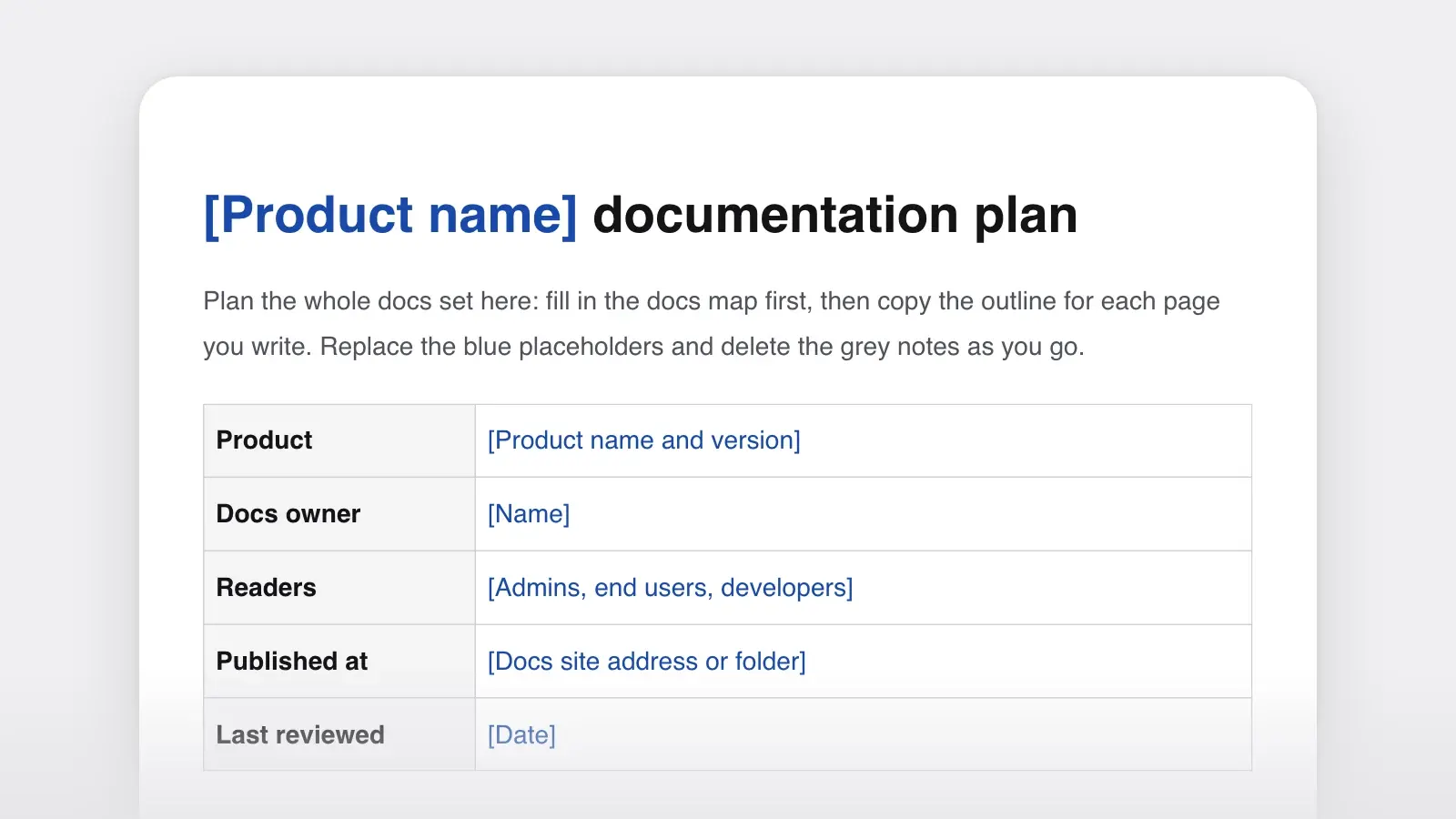
Product documentation is the set of pages that explains a product to the people who use it: what it is, how to get started, how to do each task, what every setting means, how to fix common problems and what changed in each release. This template plans the whole set rather than a single document. It starts with a docs map, one row for every page with its type, reader and owner, and then gives an outline for each kind of page.
The page types come from Diátaxis, the documentation framework created by Daniele Procida. It sorts documentation by what the reader needs at that moment: tutorials for learning by doing, how-to guides for getting a task done, reference for looking up facts and explanation for understanding how and why. Product docs add an overview page that works as the front door, and file release notes as reference. A filled-in example for an invented app follows the list of pages. If what you need to document is how work moves through a business rather than how a product is used, that is process documentation, a different template.
The pages in a product docs set
Each page answers one question. If you can't tell whether a page is finished, check it against the last column.
| Page | Type | The reader's question | At launch | Done when |
|---|---|---|---|---|
| PageOverview | TypeOverview | The reader's questionWhat is this, and is it for me? | At launchRequired | Done whenA newcomer can say what it does, who it is for and where to start |
| PageQuickstart | TypeTutorial | The reader's questionHow do I get a first result? | At launchRequired | Done whenSomeone new reaches a working result in one sitting without help |
| PageTutorials | TypeTutorial | The reader's questionCan I learn it by building something real? | At launchOptional | Done whenEvery step works as written, from start to finish |
| PageHow-to guides | TypeHow-to | The reader's questionHow do I do this one task? | At launchRequired for the most common tasks | Done whenThe task can be finished from the page alone, and the result is stated |
| PageConcepts | TypeExplanation | The reader's questionHow does it work, and why this way? | At launchOptional | Done whenThe page explains without giving steps |
| PageReference | TypeReference | The reader's questionWhat exactly does this setting, field or error mean? | At launchRequired for everything users can see or set | Done whenEvery name matches the product exactly |
| PageTroubleshooting | TypeHow-to | The reader's questionWhy isn't it working, and how do I fix it? | At launchOptional; add entries as tickets arrive | Done whenEach entry starts from what the reader sees, word for word |
| PageRelease notes | TypeReference | The reader's questionWhat changed, and does it affect me? | At launchRequired from the first release | Done whenEach change links to the page it affects |
The Required rows are a suggested minimum for launch: without them a new user can't get started, finish a common task, look up what a setting does or see what changed. The Optional rows can follow once support questions show what's missing. Whatever you ship, Diátaxis is strict about one thing: each page does one job. A tutorial that stops to explain the architecture can lose the beginner, and a reference page full of advice slows down the expert who only wanted a default value. When a page starts doing two jobs, split it and link the halves.
Product documentation example
Here is the template filled in for Roster, an invented app that small teams use to schedule shifts. First the docs map, then excerpts from four of its pages.
| Page | Type | Reader | Owner | At launch |
|---|---|---|---|---|
| PageRoster documentation | TypeOverview | ReaderEveryone | OwnerDocs lead | At launchRequired |
| PageQuickstart: publish your first schedule | TypeTutorial | ReaderNew admins | OwnerDocs lead | At launchRequired |
| PageTutorial: set up a rotating weekend schedule | TypeTutorial | ReaderAdmins | OwnerSupport lead | At launchOptional |
| PageHow to swap a shift | TypeHow-to | ReaderStaff | OwnerSupport lead | At launchRequired |
| PageHow to export hours for payroll | TypeHow-to | ReaderAdmins | OwnerSupport lead | At launchRequired |
| PageHow shift rules work | TypeExplanation | ReaderAdmins | OwnerProduct manager | At launchOptional |
| PageSettings reference | TypeReference | ReaderAdmins | OwnerEngineering | At launchRequired |
| PageTroubleshooting notifications | TypeHow-to | ReaderEveryone | OwnerSupport lead | At launchOptional |
| PageRelease notes | TypeReference | ReaderEveryone | OwnerProduct manager | At launchRequired |
Overview, first paragraph. The reader asks: what is this, and is it for me? Roster builds and shares shift schedules for teams of 5 to 200 people. Admins create the schedule and staff see their shifts, swap them and request time off from their phones. New here? Start with the quickstart: you can publish your first schedule in about 15 minutes.
Quickstart, steps 3 to 5. The reader asks: how do I get a first result?
- Select Add shift, choose Monday 9:00–17:00 and assign it to yourself. You should see the shift on the calendar in gray, marked Draft.
- Repeat for two more people on your team.
- Select Publish week. You should see the shifts turn blue, and each person gets an email with their shifts.
Settings reference, one row. The reader asks: what exactly does this setting do? Minimum rest between shifts · Type: hours · Default: 11 · Roster warns the admin when a new shift starts less than this many hours after the same person's previous shift ends. It doesn't block the shift.
Troubleshooting, one entry. The reader asks: why isn't this working? You see “Notifications paused for this account”. Cause: the person turned off notifications in their profile. Fix: ask them to open Profile › Notifications and turn on Shift changes. Admins can't change this setting for them.
Why it works. The overview tells a newcomer whether Roster is for them and sends them straight to the quickstart. The quickstart steps use the exact button names and say what should happen after each one. The reference row states the default and the behavior, including what the setting doesn't do. And the troubleshooting entry starts from the message on the screen, so a reader who searches for it lands on the fix.
The order for a first-time admin. Overview first, then the quickstart, then How to swap a shift or How to export hours for payroll when the first real task comes up. The settings reference and the troubleshooting page wait until something behaves unexpectedly. That is why the overview links straight to the quickstart, and why the four pages use the same words for the same things: Publish week, Draft, Shift changes.
How to use this template
- List the jobs readers come to do
Go through support tickets, onboarding calls, the search box of your help center and the product's main screens. Write each job as a task: “swap a shift”, “export hours for payroll”. Each task becomes a how-to guide. The first thing every new user must do becomes the quickstart.
- Fill in the docs map
One row per page: the title, its type, the reader (admin, end user, developer), an owner and a status. A page with no owner tends to be the first to go out of date, so leave no owner cell empty.
- Write the quickstart first
It is usually the first page new users are sent to, and writing it shows you which concepts and settings the rest of the docs must explain. Keep it to the shortest path to a first real result.
- Copy reference from the product, not from memory
Take button labels from the screen, setting names and defaults from the configuration, and fields from the API schema. If the reference can be produced from the code, link to that version instead of retyping it.
- Ship the docs with the release
Update the affected pages in the same release as the feature, link them from the release notes, and put a “last reviewed” date on every page so readers can judge how current it is.
Outlines for each page type
These are the outlines in the template. Copy the one you need for each row of the docs map.
Overview page
- One sentence on what the product does and who it is for
- Three to five things you can do with it, each linking to a how-to guide
- “Start here”: a link to the quickstart
- How the docs are organized, in one short list
- Where to get help, and what to include when you ask
Quickstart
- What you will have at the end, and roughly how long it takes
- Before you start: the account, permissions or files you need
- Three to seven numbered steps, each ending with what you should see
- Next steps: two links, usually a tutorial and a how-to guide
Tutorial
- What you will build, and what you will learn on the way
- Prerequisites, including what you should already have done
- Steps in short sections, with a checkpoint after each section
- A recap of what the reader can now do, and where to go next
A tutorial makes the choices for the reader. Options, alternatives and edge cases belong in how-to guides and reference.
How-to guide
- The title as a task: “How to export hours for payroll”
- When you would do this, in one or two sentences
- Before you start: permissions, settings, data
- Numbered steps that use the exact labels on the screen
- The result, and related tasks
Concept page
- The idea in one paragraph
- How it works, with a diagram if a picture is clearer
- Why it is designed this way, and the trade-offs
- Links to the reference and how-to guides that use it
Reference page
- One page per group of settings, endpoint, command or error list
- The same table on every page: name, type, default, what it does, example
- No narrative and no advice; link to a how-to guide instead
Troubleshooting page
- One entry per problem: what you see, why it happens, how to fix it
- Error messages quoted exactly, because readers search for them
- The most common problems first, and a way to contact support at the end
Release notes
- Version and date; highlights in a sentence or two
- New, improved and fixed, written as what changed for the user
- Breaking changes and exactly what to do about them
- Links to every docs page the release changed
The release notes template has this structure as its own document, if you publish release notes separately from the docs.
A docs set or a single document?
Not every product needs a whole docs site. Choose this template when several kinds of reader come with several kinds of question. For narrower needs, a single document does the job:
| You need | Use |
|---|---|
| You needA front page for a code repository | UseREADME template |
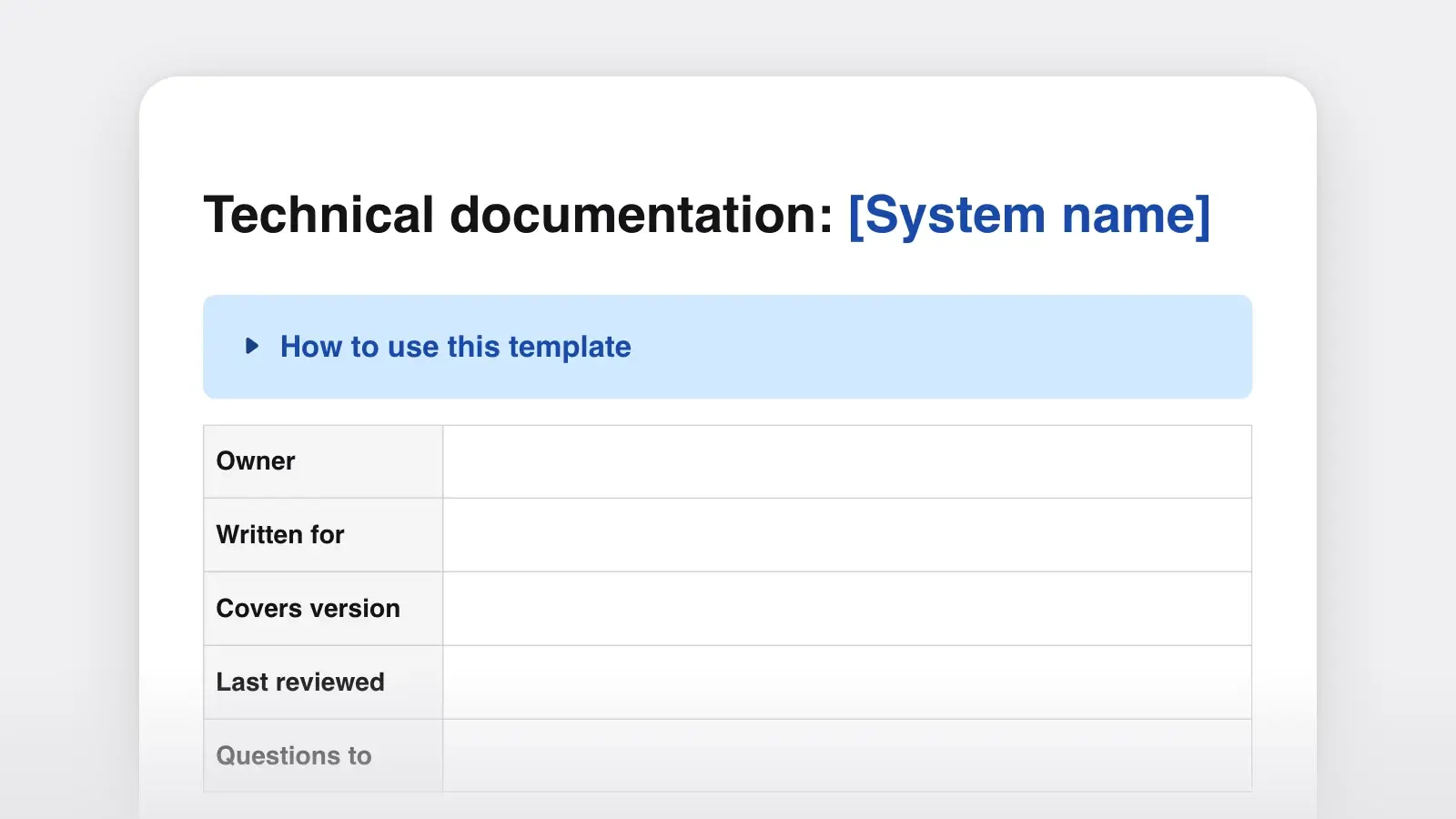
| You needOne system documented for the engineers who build and run it | UseTechnical documentation template |
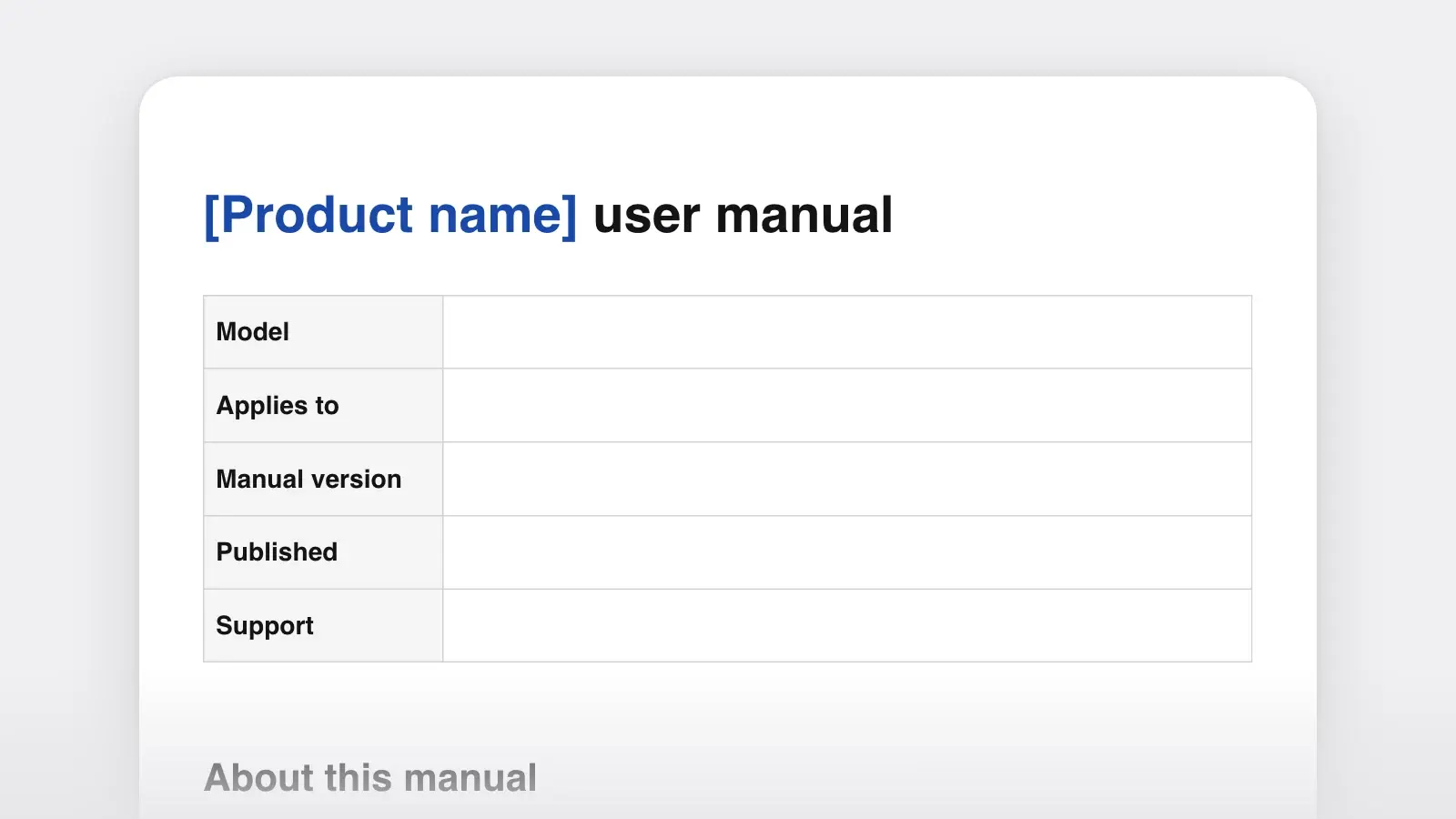
| You needA printed or PDF manual for a device or an app | UseUser manual template |
| You needWhat changed in a release | UseRelease notes template |
| You needSeveral of these, for one product and many readers | UseThis template |
Keep the docs in step with the product
- Make docs part of “done”. A feature ships when its pages are updated, not afterwards. Add the docs pages to the same ticket or pull request as the code.
- One owner and a review date per page. Put both on the page itself, and check the docs map each quarter for pages past their date.
- Use the product's words. If the button says Publish week, the docs say Publish week. Record naming decisions in a short style guide so every author uses the same terms.
- Label the version. When behavior differs between versions, say which version a page covers, or keep a separate set for each major version.
- Turn questions into rows. A support ticket the docs should have answered, or a help-center search that found nothing, is a missing page or a page that needs fixing. Add it to the docs map the day it comes up.
- Retire pages on purpose. When a feature goes away, remove its page and point the old address at its replacement, so bookmarks and search results don't end on an outdated page.
If you keep the docs set as a project folder in Strokes, one document per page, agent mode can handle a rename: ask it to find every page that still uses the old feature name and update it, and it shows each step as it works through the folder. “Use this template” opens the docs map and the outlines as one document you can edit and export.
Frequently asked questions
What is the difference between product documentation and technical documentation?
Product documentation is written for the people who use a product and explains how to get work done with it. Technical documentation is written for the people who build, run or integrate a system and explains how it is built and kept running. Teams use the terms loosely, and a software product often needs both.
Who should write product documentation?
Technical writers, where a team has them. Otherwise, the people closest to each page write the first draft: support for troubleshooting, engineers for reference, product managers for concepts and release notes. One person should own the whole set and edit it so it reads consistently.
How do you organize product documentation?
Organize first by what the reader needs (learning, doing a task, looking something up, understanding), then by product area within each type. Keep the navigation shallow, give every page a title that says what it covers, and make the overview page the entry point that links to the quickstart and the most common tasks.