To start a Substack, create a free account at substack.com, set up your profile, then click the + button and choose Post. That opens your publication. You can rename it at any time, but its substack.com address is harder to change, so pick that with care. Before you tell anyone, write the About page, edit the welcome email and publish two or three posts. Publishing is free; Substack takes 10% only if you charge for subscriptions, and Stripe takes its processing fees on top.
The setup comes first below, and all of it is free. The two optional extras that cost money, paid subscriptions and your own domain, come after it. Fees, settings and menu names are from Substack's help center and Stripe's pricing page, as of November 2026; menus move, so treat the names as a map and recheck the fees before you set a price. For writing the issues themselves (the promise, the format, subject lines), see how to write a newsletter. This page is about the platform.
Decide three things first
You can change all three later, but they shape the first month, and they are easier to settle on paper than in the settings.
- The promise. One sentence: who it's for, what they get and how often. It becomes the first line of your About page and the test for every post. The newsletter guide has a fill-in version of this sentence.
- The name and the address. You can rename the publication in Settings > Basics whenever you like. The address is the part before .substack.com, 4 to 32 letters and numbers. For search, Substack recommends your own name, or a site or publication name readers already know. Choose it before you publish: the option to change it sits in the Danger Zone of your settings, and changing it breaks your existing links unless you use Substack's redirect, which works only once.
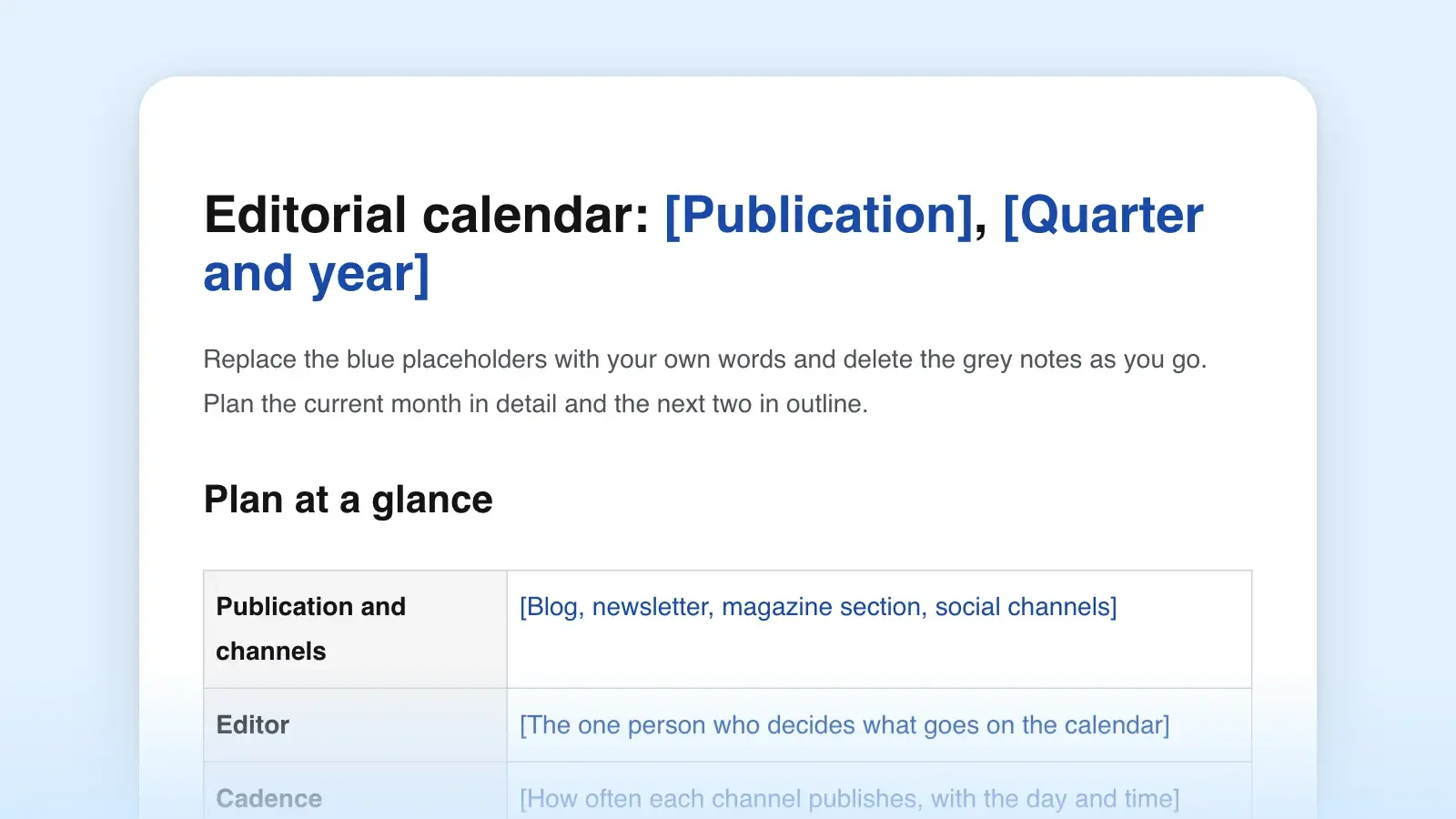
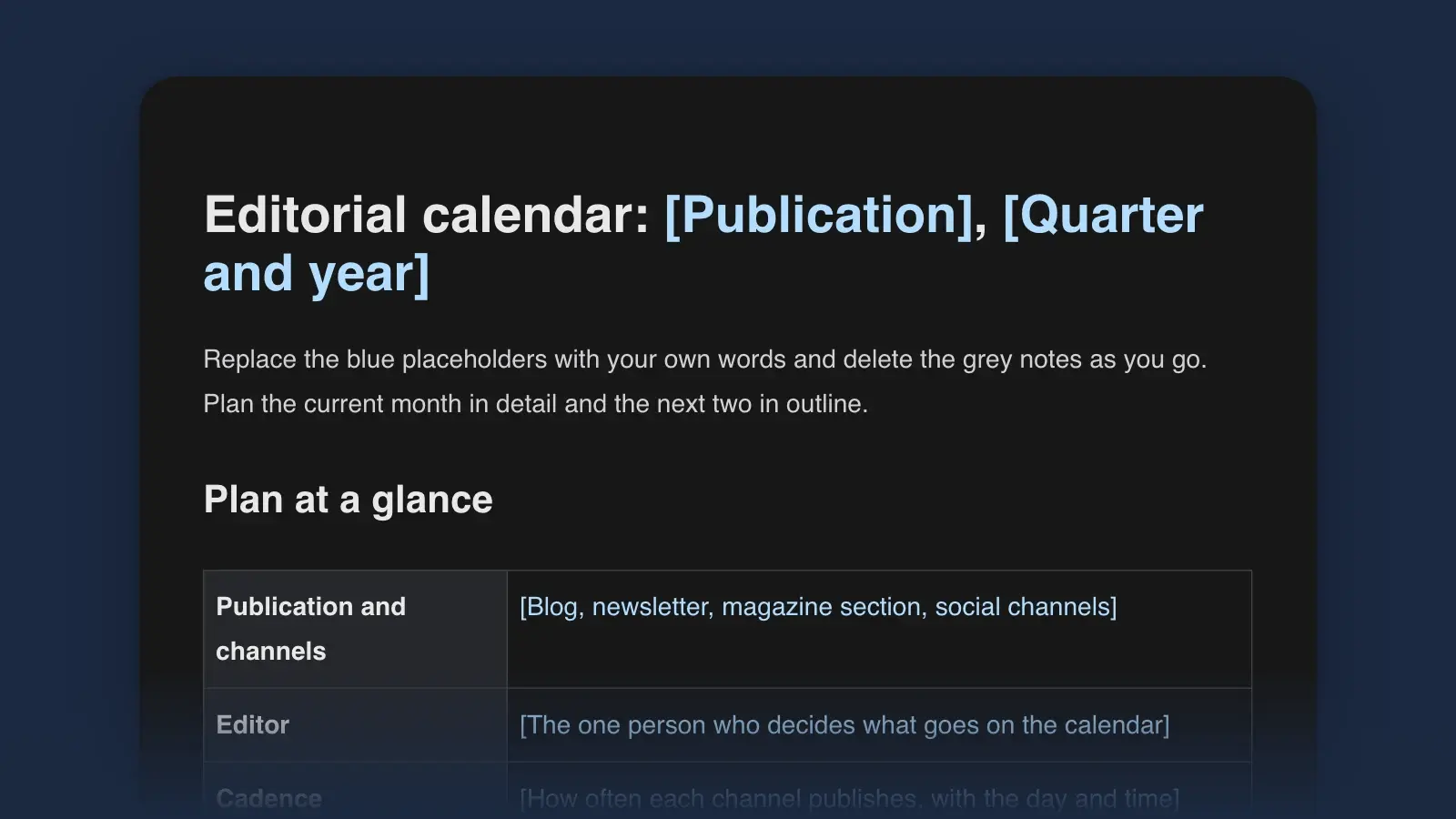
- The schedule. Pick a day and a cadence you could keep for a year, then put the first eight dates on a content calendar. Readers can plan around a slow newsletter that always arrives; a fast one that skips weeks is harder to rely on.
Start a Substack, step by step
- Create your account and profile
On substack.com, click Create account, then add a photo, your first name and a short bio. The handle you choose becomes your profile address, substack.com/@yourhandle. Write the bio for a stranger: what you write about, and the one credential that makes someone trust you on it. The author bio examples show how much fits in two lines.
- Create the publication
Click the + button and choose Post. That takes you into your Substack, where you write and manage posts. A new publication is public from the start; to keep it out of view while you prepare, turn on Privacy mode in Settings. One account can hold up to 10 publications, and each one that takes payments needs its own Stripe account.
- Choose Profile or Custom
In the website editor (Home page > Theme), Profile makes your Substack address show a mirror of your profile, while Custom gives you a full site with your own layout, logo and branding. One detail matters on day one: in Profile mode, welcome emails start sending only after you have published at least two posts. Switching to Custom removes that wait.
- Write the About page and the welcome email
The About page is your pitch to a visitor; the welcome email is your first issue to a subscriber. Substack supplies boilerplate for the welcome email. Replace it. Under Settings > Emails you can edit four separate welcome emails: for free subscribers, paid subscribers, imported subscribers and founding members. Examples of an About page and a welcome email are below.
- Import your list, if you have one
In your dashboard, go to Subscribers > Add subscribers and upload a .csv, .xlsx or .ods file. Substack accepts only people who explicitly opted in to hear from you, and asks you to confirm that before the import runs. Flagged lists go to its Standards & Enforcement team, which aims to review them within 72 hours, and lists that don't meet the opt-in standard are likely to be denied. Old posts can come with you from WordPress, Medium, Ghost, Mailchimp, Beehiiv, Tumblr and Blogspot, among others. Imported posts appear on your site; you can email one to subscribers if you choose. If you are moving, leave the welcome email option unticked when you import subscribers, as Substack advises, so the list doesn't hear about the move before you are ready.
- Publish two or three posts before you announce
A visitor deciding whether to subscribe reads the archive. Give them something to read: your best idea first, then two posts that show the range of the promise. You can schedule a post for a future date and time, and send each one to everyone, to free or paid subscribers only, or to founding members. For subject lines, the email section of the headline examples is a good warm-up.
- Recommend a few publications you read
In your settings, add publications you would genuinely send a friend to, each with a short note on why. Substack can show your recommendations to readers right after they subscribe, on your homepage and on a Recommendations page, and it emails your subscribers a digest when you add a new one.
Then send the announcement: a personal email to people who know your work, a post on the channels where they already follow you, and a link in your email signature. A button that says what arrives and how often tells a visitor more than "Subscribe" alone; the call to action examples include ten written for newsletters.
About page, welcome email, first post
These three are the newsletter's shop window. All three examples below come from one invented publication, written by a former night editor for people who write at work, and all three carry the same promise: one reader's paragraph, edited, every Tuesday.
Night Desk is a weekly letter for people who write at work and want their emails, reports and proposals understood the first time.
Every Tuesday you get one real paragraph, sent in by a reader and made anonymous, edited line by line; one rule worth keeping; and one rule you can safely ignore.
I'm Tomás Ferreira. For eleven years I edited the overnight pages of a regional daily in California, cutting other people's sentences to fit before the 1 a.m. deadline. Now I do the same for companies, and on Tuesdays I do it here.
It's free. Paid subscribers can also send me one paragraph a month and get it back edited, with notes.
Why it works. The first sentence names the reader and the result, the second says exactly what each issue holds, and the bio offers one credential that matters for this promise. The paid offer is a single concrete thing. The whole page is under 120 words, and its tone of voice is the voice of the issues.
Subject: Welcome to Night Desk (start with this edit)
Thanks for subscribing. The next issue arrives Tuesday morning.
Until then, here is the edit readers ask about most: a 94-word apology email cut to 31 words, with every change explained. [Link to the post]
One question, if you have a minute: what do you write most often at work? Hit reply and tell me. I read every answer, and the most common ones become issues.
Tomás
Why it works. It says when the next issue comes, so the subscriber knows what to expect. It hands over the best edit in the archive instead of a list of links, which is the promise in miniature. And it ends with a question that is easy to answer and useful to the writer, which turns the welcome email into research.
Title: The status update that took nine drafts
A project manager in Ohio sent me this paragraph last week. It went to her company's leadership every Friday, and every Friday someone replied asking what it meant:
“Per the ongoing alignment efforts with relevant stakeholders, timelines for the Q3 deliverables are being revisited to ensure feasibility.”
It says the project is late. Here is how we got it to say so in eleven words, without getting her fired. After the edit, as every Tuesday: one rule worth keeping and one you can ignore.
Why it works. The first post is a real issue, not an introduction, so a visitor sees exactly what they would be signing up for. It opens on a specific person and a specific problem, the reader stays anonymous as the About page promised, and the last paragraph names the payoff and the two regular parts still to come. The "who I am" part already lives on the About page.
If you draft in Strokes, keep the About page in the same project as your posts and ask the Strokes Assistant to review each new post against its promise: what a stranger wouldn't follow, and what repeats last week's issue.
Substack fees, as of November 2026
Everything above is free. Costs start with the two optional features that follow: paid subscriptions and a custom domain.
| Item | Cost | Notes |
|---|---|---|
| ItemPublishing, emails and your Substack site | CostFree | NotesAt any subscriber count |
| ItemSubstack's fee on paid subscriptions | Cost10% of each payment | NotesOnly once you turn on payments |
| ItemStripe card processing | Cost2.9% + 30¢ per payment | NotesUS rate for US cards; Stripe adds 1.5% for international cards and 1% if currency conversion is needed |
| ItemStripe Billing | Cost0.7% of recurring payments | NotesSubstack's rate since July 2024 |
| ItemSubscriptions bought in the iOS app | CostApple's service fee, 15–30% | NotesDeducted along with Substack's fee; see the FAQ |
| ItemCustom domain | Cost$50, one time | NotesPlus the domain itself, bought from a registrar |
| ItemLowest paid price | Cost$5 a month or $30 a year | NotesFor US-dollar Stripe accounts; other currencies vary |
Here is what that means for one payment made on the web, using US card rates. On a $5 monthly subscription, Substack keeps 50 cents, Stripe's card fee is about 45 cents and the billing fee about 4 cents, so you receive about $4.02, roughly 80% of the price. On a $50 annual subscription the same fees come to $7.10 and you receive $42.90, almost 86%. The fixed 30 cents is what makes the difference: an annual plan pays it once instead of twelve times. If you want readers to choose the annual plan, price it so it is clearly the better deal.
Optional: turning on paid subscriptions
You don't need to decide on day one. Free Substacks with suggested pricing can collect pledges: readers enter their payment details and promise to pay if you turn on payments, nobody is charged until then, and the pledges convert to paid subscriptions when you do. Pledges are a cheap way to find out whether a paid tier has an audience.
When you are ready:
- In Settings > Payments, click Connect with Stripe and give Stripe the details it asks for.
- Set monthly, annual and founding member prices. The minimum is $5 a month and $30 a year on a US-dollar Stripe account. The founding plan must cost more than the annual one; Substack describes it as similar to a donation.
- Turn on Enable payments. Readers see nothing about paid plans until you do.
- Decide post by post what is free and what is paid. In Payments you can also offer a seven-day trial at the paywall and create special offers.
One setting deserves a look before launch. Substack Boost, which you can switch off under Settings > Growth, automatically shows discounts and special offers to readers, including an upsell email with a default 20% discount for one year. Decide whether you want your newsletter discounted on your behalf.
Optional: using your own domain
A custom domain costs a one-time $50, paid to Substack, on top of the domain itself, which you buy from a registrar. Only the publication's owner or a group administrator can connect it, under Settings > Domain. Substack hosts the publication on a subdomain such as www and can redirect the bare domain to it, and setup can take up to 36 hours to finish. If you plan to use your own domain, connect it before you start sharing links widely, so the address readers learn first is the one you keep.
Mistakes that slow a new Substack
- Announcing an empty publication. A visitor who finds no posts has nothing to judge. Two or three posts give them something.
- Importing people who never signed up. Old customer lists and conference badge scans are often full of people who never asked for a newsletter, and Substack accepts only lists of people who explicitly opted in. On the GDPR, Substack says the lawful basis for an import is ultimately the publisher's responsibility.
- Leaving the boilerplate in place. A stock welcome email and a thin About page waste the two moments when a new reader is paying the most attention.
- Pricing before you know your pace. Write eight free issues first, and you will know how much more you can promise paying readers.
- No backup of your own. Settings > Exports gives you a zip file of your posts, subscriber list and statistics, and Substack says that anything you publish there is yours. Download it every few months; deleting a publication permanently deletes its posts and list.
Frequently asked questions
Do I need a Stripe account to start a Substack?
No. A free publication needs only a Substack account. Stripe comes in when you turn on payments, under Settings > Payments, and each publication that takes payments needs its own Stripe account, so two newsletters can't share one. Before that, if you show suggested prices, readers can pledge to pay, and the pledges convert once you connect Stripe and enable payments.
Do subscriptions bought in the Substack app cost more?
They can. Readers who subscribe in Substack's iOS app pay through Apple, and Apple's service fee, which Substack puts at 15 to 30%, is deducted from your revenue along with Substack's own. Substack's recommended setting adjusts in-app prices to offset that fee; the alternative keeps them equal to your web prices. In-app purchases can't be turned off while payments are connected.
Can I leave Substack and take my subscribers with me?
You can export your posts, subscriber list and statistics as a zip file from Settings > Exports at any time, and Substack says what you publish there is yours. Other platforms import free subscribers from a file like that; Beehiiv, for one, publishes a guide to moving from Substack. Paid subscriptions run through Stripe, so moving them follows the new platform's own steps.
Should I start my Substack free or paid?
Start free unless readers are already asking to pay, and turn on payments once you know what you can deliver every week. Pledges let readers promise to pay before you charge anything, which shows whether a paid tier has an audience. When you add one, sell a specific extra, such as a second weekly issue, rather than general support.